
Adjust your browser settings
ShopDonation needs to inform you that the use of browser like Safari, Firefox, Opera and Brave can cause transaction tracking issues in some cases. The reason is because these browsers have strict third party cookies settings enabled by default. While the majority of online merchants do not rely on third party cookies for tracking anymore, some still do.To make sure that your purchase will get tracked by our partners and thus generate a free donation, please follow the following steps according to your browser.
On a mac:
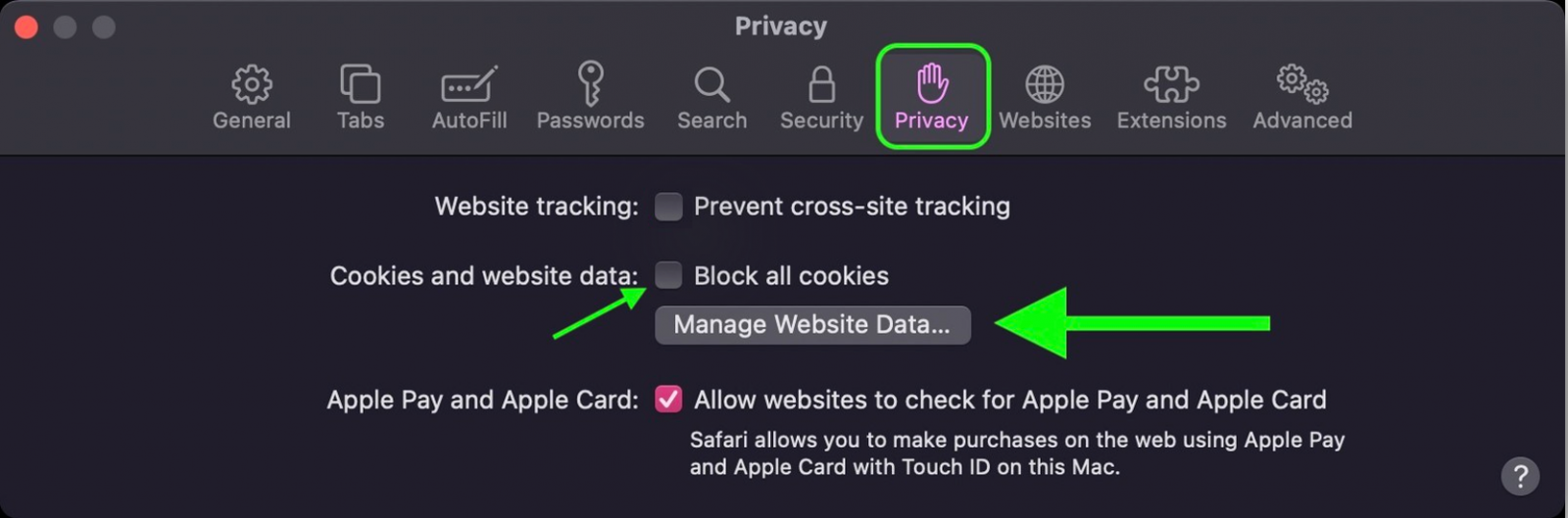
In the Safari app  , choose Safari > Preferences, click on Privacy and do the following:
1) Deselect Prevent cross-site tracking
2) Deselect Block all cookies
On an iphone:
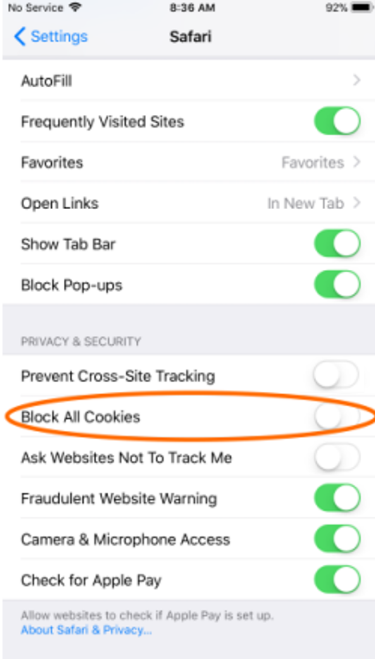
Under settings, Choose Safari and do the following:
1) Deselect Prevent cross-site tracking
2) Deselect Block all cookies
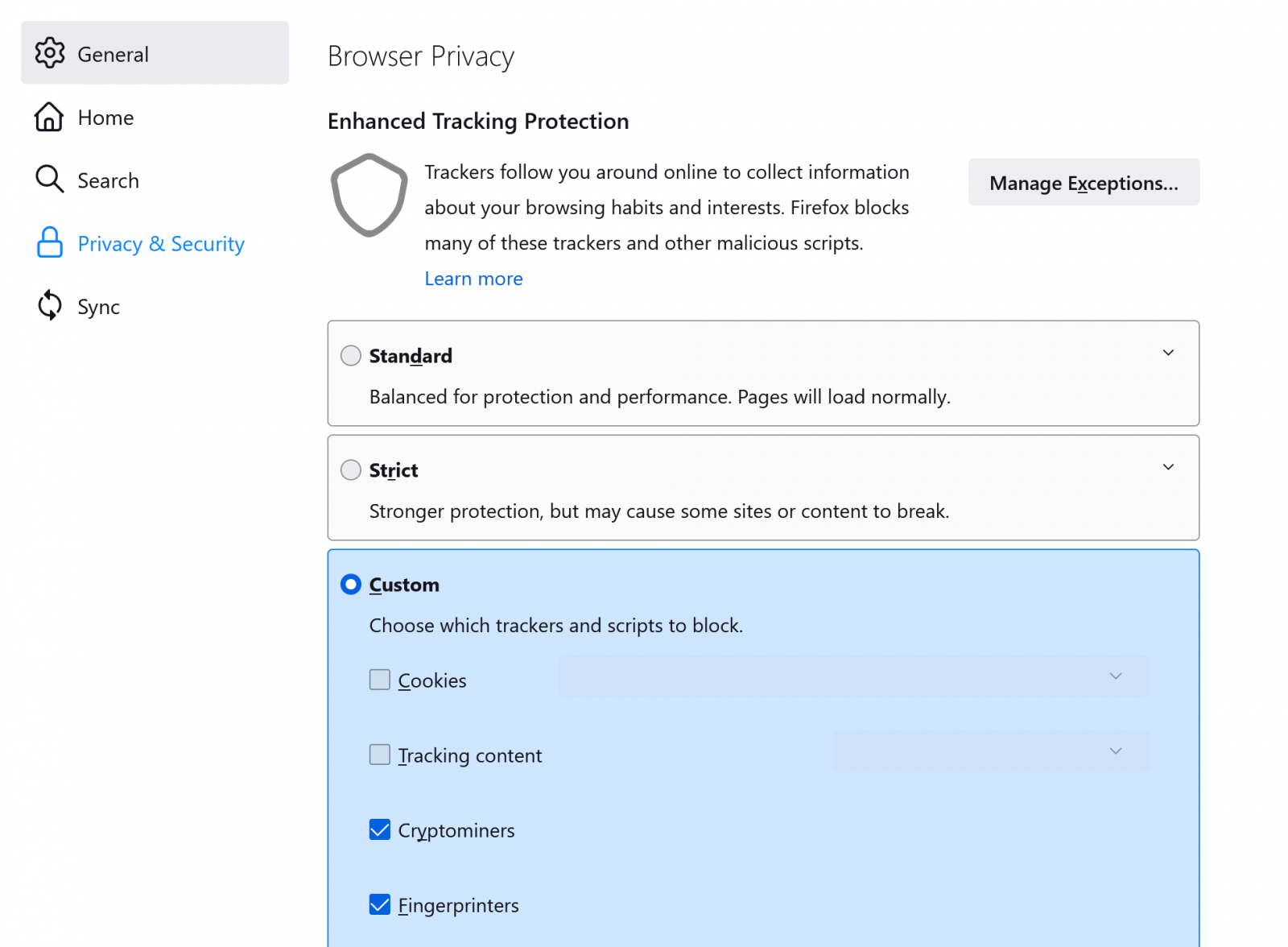
1) Open Firefox browser and in the menu  on the top right corner click on Settings.
2) Click on Privacy & Security.
3) Select the box Custom.
4) Untick the checkboxes Cookies and Tracking content.
5) Restart Firefox.
1) Open the Opera browser and click on the bottom left icon Settings  .
.
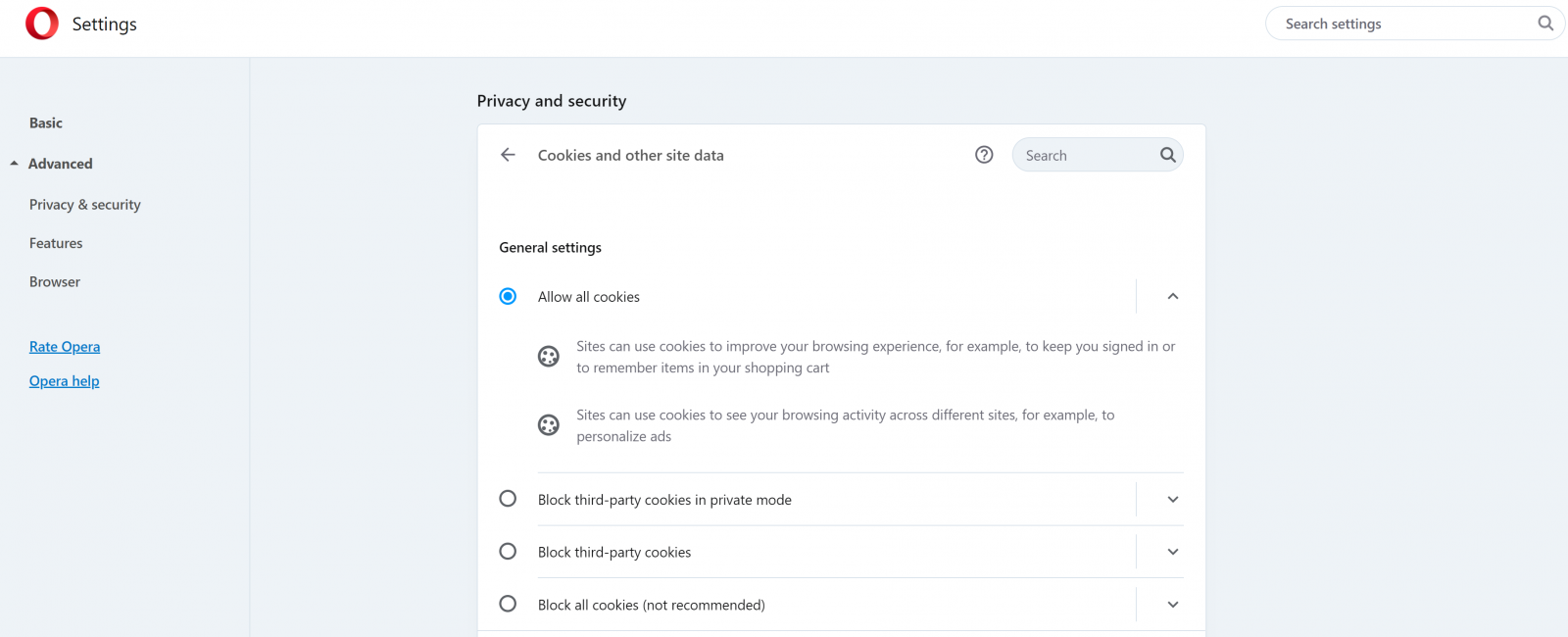
2) Click on Advanced → Privacy & security and then on the little arrow next to Cookies and other site data.
3) Check the box Allow all cookies.
4) Restart Opera to save changes.
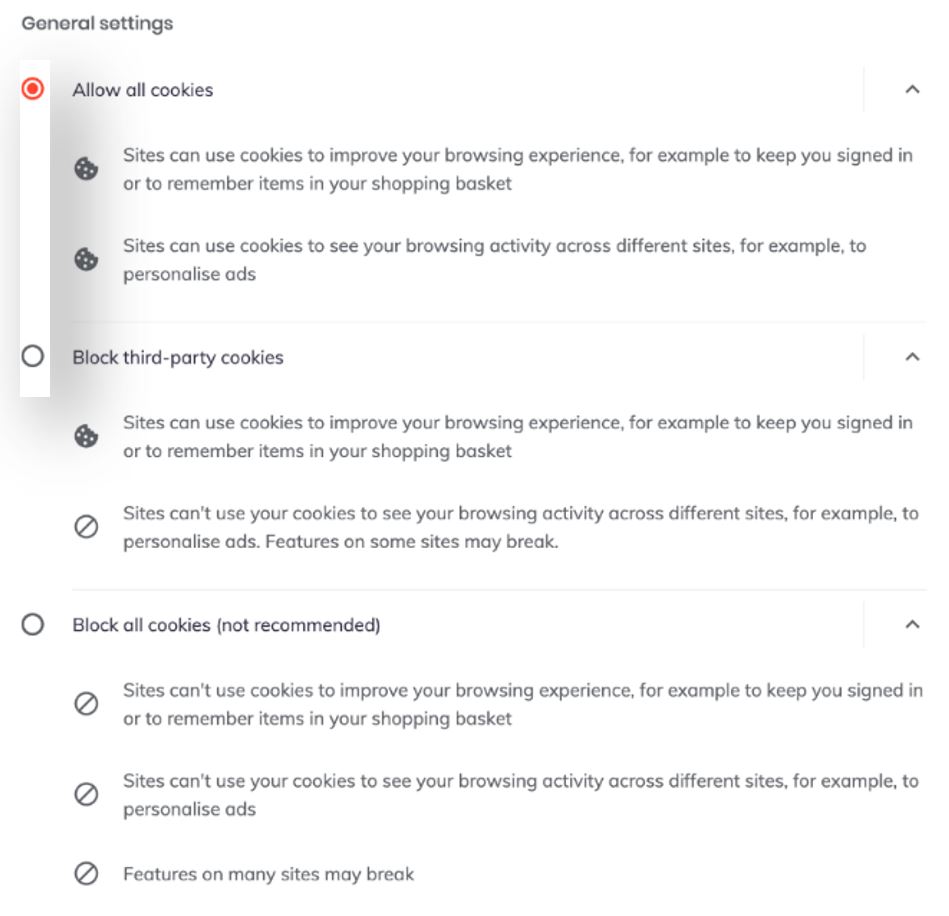
1) Click on the Menu icon in the top right corner, and go to Settings>Additional settings>Privacy and security> Cookies and other side data
2) Select Allow all cookies
3) Deselect Send a ‘Do not Track’ request with your browsing traffic (4 blocks below Allow all cookies)
1) Select gear icon  located in the upper-right corner of the browser.
2) Choose Internet Options.
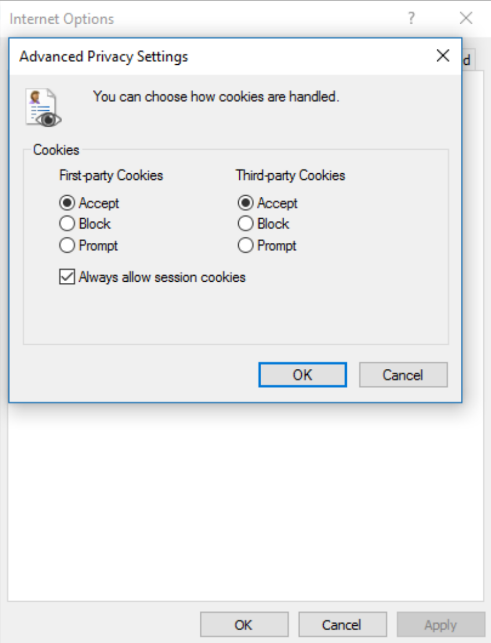
3) In the window that just opened, click on the Privacy tab and then on Advanced.
4) Check Accept First-party cookies, Accept Third-party cookies and Always allow session cookies.
5) Restart Internet Explorer.


 near the search bar.
 near the search bar.
 near the search bar.